Run Advertised Programs A How to guide

Run Advertised Programs is an application that allows users to install certain approved software applications without the need for administrator intervention.
This guide we will walk you through everything you need to know about Run Advertised Programs.

Start by clicking on the Start Button and opening the control panel.
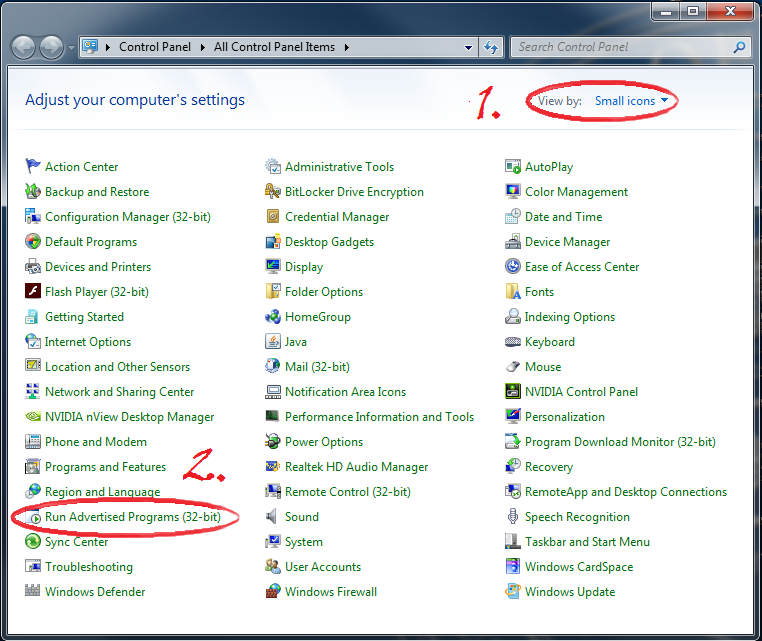
Next, select Run Advertised Programs from the list. You may need to change your view mode to small or large icons for it to be visible (shown above).

Once Run Advertised Programs is open, you may see some program names starting with an MTO or TCNO number. The common name of the program is usually behind this number.

You can drag out the Program Name pane in order to see the full name of the applications, so you can easily find the one you're looking for.

Once you see the application you need, make sure you click the title first, then click Run. Some programs can take up to 30 minutes to download and install, so don't restart your computer or log off until you can confirm the installation is complete. It's okay to lock your computer, but don't log off completely.
Don't worry if you don't see anything happen right away. Some programs act differently when you click run.
Some programs show a dialog box asking for confirmation...
Others show a progress bar that shows the status of the download...
...and some do nothing at all.
As long as you don't see an error message, your program is downloading.

If you want to check that status, open Run Advertised Programs, then check the date and time of the last successful installation.
Remember, you can only run one program at a time in Run Advertised Programs. If you try to run another program before the preceding one completed, you will see this error:

Finally, remember that your local CSTs are here to help. If you need help or have any questions, never hesitate to give us a call at 618-229-0327/779-0327.